
Quickstart: From Template to First Live Deployment
This tutorial walks you through launching a fully functional B2B industrial export portal in less than 5 minutes, complete with an interactive SKU matrix table, WhatsApp RFQ actions, and instant sample checkout.
Step 1: Navigate to Dashboard & Select Template
Section titled “Step 1: Navigate to Dashboard & Select Template”- Log in to the SymbolFlow Dashboard.
- In the left navigation bar, click AppSuites.
- Click the Create AppSuite button at the top right.
- Locate the precision industrial export card (B2B portal website template) and click Create AppSuite.
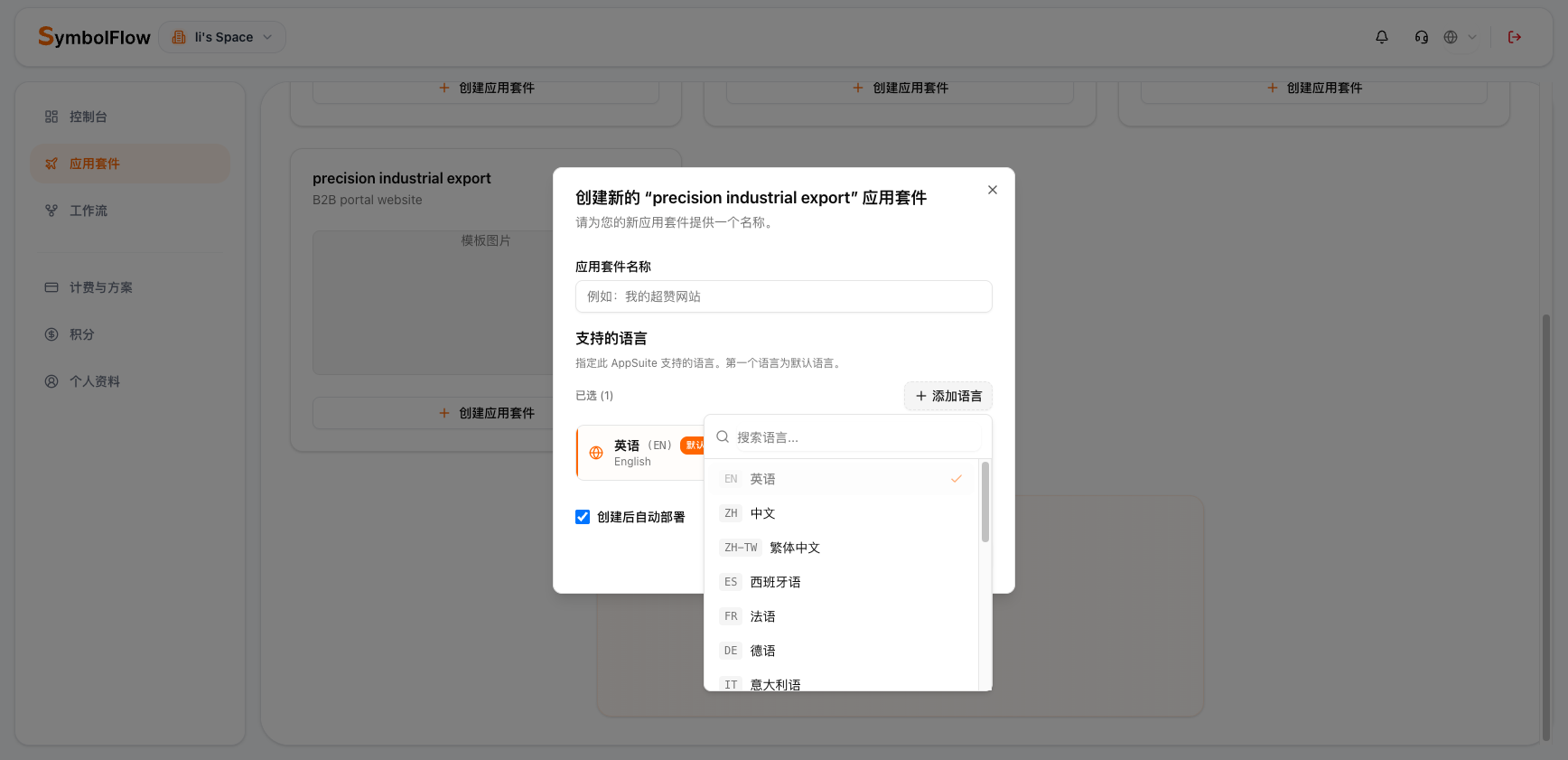
Step 2: Configure Name & Multi-Language Support
Section titled “Step 2: Configure Name & Multi-Language Support”In the setup dialog, complete the following 3 fields:
- Appsuite Name:
- Enter a project name (e.g.,
Kunlun Precision Industrial Export). This identifier is for your internal dashboard organization.
- Enter a project name (e.g.,
- Supported Locales:
- English (EN) is selected as the default primary language.
- Click + Add Language to select Chinese (ZH) or any other target export market languages (Spanish ES, German DE, French FR, etc.).
- Note: The first language in the list serves as the root default language.
- Auto-deploy after creation:
- Keep this checkbox checked. The system will automatically build and deploy the initial version upon creation.
- Click Create AppSuite at the bottom right.
Step 3: Understand Your Dual-Engine Topology
Section titled “Step 3: Understand Your Dual-Engine Topology”Once created, you will enter the AppSuite detail canvas. The system automatically provisions two coordinated application nodes:
| Application Node | Primary Responsibility | Quick Actions |
|---|---|---|
| 1. Back-Office (Payload CMS) | Manages product variants, dynamic specs, media assets, RFQs, and sample orders | Click Open App to enter CMS, inspect service logs |
| 2. Front-End (Astro Static Site) | Delivers sub-second edge browsing, multi-row matrix purchasing, and global SEO | Click Visit Website, click Custom Domain |
- Wait 1–2 minutes until both nodes display a green Running status indicator.
Step 4: Inspect Seeded Catalog in Payload CMS
Section titled “Step 4: Inspect Seeded Catalog in Payload CMS”- In the Appsuite detail view, click Open App (or the external URL) on the Payload CMS node.
- Log in with your admin credentials.
- In the left menu, click Offerings.
- You will see a pre-loaded sample product: VD Cylindrical Rubber Isolator Mounts (VD型圆柱橡胶双头螺栓减震器).
- Click this offering to explore:
- English and Chinese localized descriptions;
- Dynamic specification columns (Diameter $D$, Height $H$, Thread $M$);
- Over 30 pre-configured SKU variants with unit prices and inventory counts.
Step 5: Verify the Live Global Storefront
Section titled “Step 5: Verify the Live Global Storefront”- Return to the dashboard or click the public URL of the Astro storefront node (formatted as
https://[app-id].symbolflow-sites.com). - Open the URL in your browser:
- Test the top language switcher (EN / ZH);
- Navigate to the catalog and open the VD Rubber Mount detail page;
- Try clicking the filter chips at the top of the matrix table to instantly filter rows;
- Notice the WhatsApp quick inquiry button, the multi-row quantity steppers, and the bottom cart action bar.
Congratulations! Your B2B industrial export portal is officially live!
Next Steps
Section titled “Next Steps”Now let’s configure your custom corporate domain and master multi-language management: